الموارد/Explore the ZMEU photo editor

تحرير الصور والفيديو

Explore the ZMEU photo editor

Recreate a visual direction, edit photos with chat or hands-on tools, build layered designs, and add motion for social content.

Example: A shop owner uploads a product photo, removes a distracting background object, adds an editable sale headline and exports a square post.

Start with your own or saved images

Choose Upload & edit on Home. Start a project or reopen one in Projects. In Media, upload a photo, reuse an image from your library, or open the Pinterest tab. Pexels opens the stock photo library; Brand shows saved colors and fonts.

Open Media to add your own file or an image from Library.

Open Media to add your own file or an image from Library.

Image editor Media panel with Library and computer upload
Open original file
Pexels is a separate source for stock photos.

Pexels is a separate source for stock photos.

Image editor Pexels stock photo panel
Open original file

Recreate a look you found on Pinterest

Connect Pinterest and pick a Pin from your boards, or upload a reference from your device. Add it as a style reference in Agent and describe what you want to carry over: framing, colors, lighting, or mood. Add your own product or subject reference separately and ask for a fresh image in that direction, then refine it on the canvas.

Try this: Use this Pin for the bright editorial lighting and composition. Keep my product recognizable and make a new image for our campaign.

Open Pinterest in Media when you want a visual reference.

Open Pinterest in Media when you want a visual reference.

Pinterest tab inside Image editor Media
Open original file

Create and edit through chat

Use Agent to generate a new image or request a focused change to an existing one. Ask to replace a background, remove an object, change colors or lighting, adjust a product scene, or make a new variation. Attach reference images, products, characters, or brand context and compare the returned versions before placing one on the page.

Describe a focused image change in Agent and review its cost before running it.

Describe a focused image change in Agent and review its cost before running it.

Image editor Agent with references and example edit requests
Open original file

Crop, arrange, or use a focused edit

Select an image on the canvas to move, resize, rotate, crop, or change its layer order yourself. The image toolbar also offers Eraser, Inpaint, background removal and upscaling. Those AI-assisted actions show a credit cost before you run them; paint the area or describe the change, then review the result.

Select the image to reveal manual crop and arrange controls alongside AI edit tools.

Select the image to reveal manual crop and arrange controls alongside AI edit tools.

Selected image toolbar with crop, rotate, background and edit actions
Open original file
Eraser lets you mark an unwanted area and shows its cost before Run.

Eraser lets you mark an unwanted area and shows its cost before Run.

Image editor Eraser dialog with brush size and credit estimate
Open original file

Build a complete design

Add editable headlines and captions with Text. Use Elements for shapes, graphics, grids, and graphic motions; choose colors and keep the layout aligned with your brand. Arrange the order, visibility, and placement of objects in Layers. Use Notes to keep ideas or feedback beside the work.

Use Elements, Text and Layers to build a complete design.

Use Elements, Text and Layers to build a complete design.

Image editor Elements panel with shapes and grids
Open original file
Color controls the workspace, project palette and brand colors.

Color controls the workspace, project palette and brand colors.

Image editor Color panel
Open original file
Brand gives you saved colors and fonts for the design.

Brand gives you saved colors and fonts for the design.

Image editor Brand panel with saved colors and fonts
Open original file

Add movement

Open Animate to apply page or layer animation and motion paths. You can also place animated graphic elements on the canvas. Preview how the movement feels and export an animated version when the selected format supports it; a still image export keeps a single frame.

Choose a movement preset and preview it on the design.

Choose a movement preset and preview it on the design.

Image editor Animate panel with motion presets
Open original file

Finish and reuse

Review the crop, text, and spacing at the intended post size. Save the project so you can return to its layers, then export the finished image or animation and use it in your content calendar.

Check the final copy and layout before export.

Check the final copy and layout before export.

Image editor Text panel with editable styles
Open original file

هل أنت مستعد لتجربته بنفسك؟

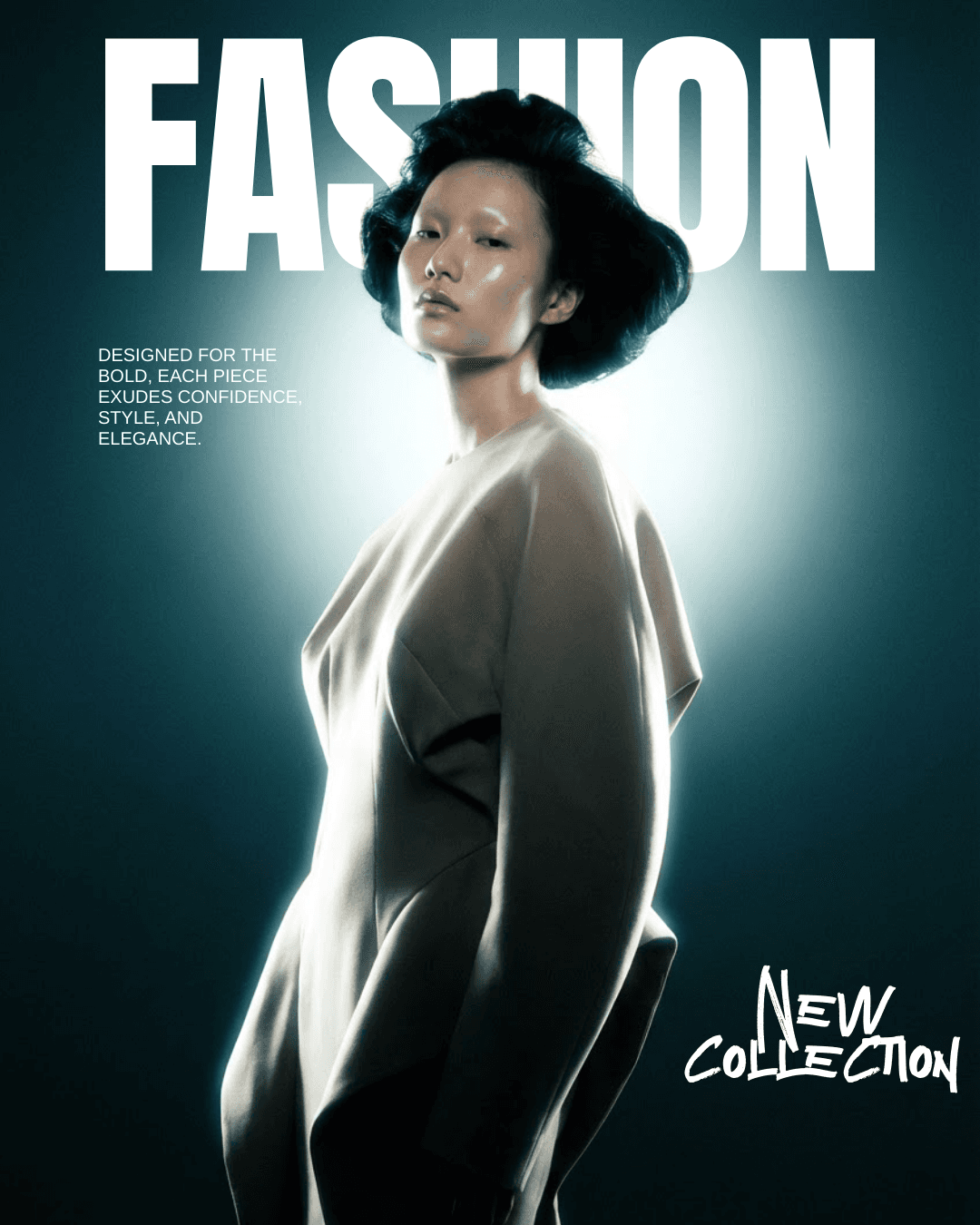
A reviewed, editable design that is ready to export or use in a social media post.

إنشاء حساب

حالات الاستخدام ذات الصلة

Swipe to see more use cases · 1/4
Explore the ZMEU photo editor | Zmeu Resources